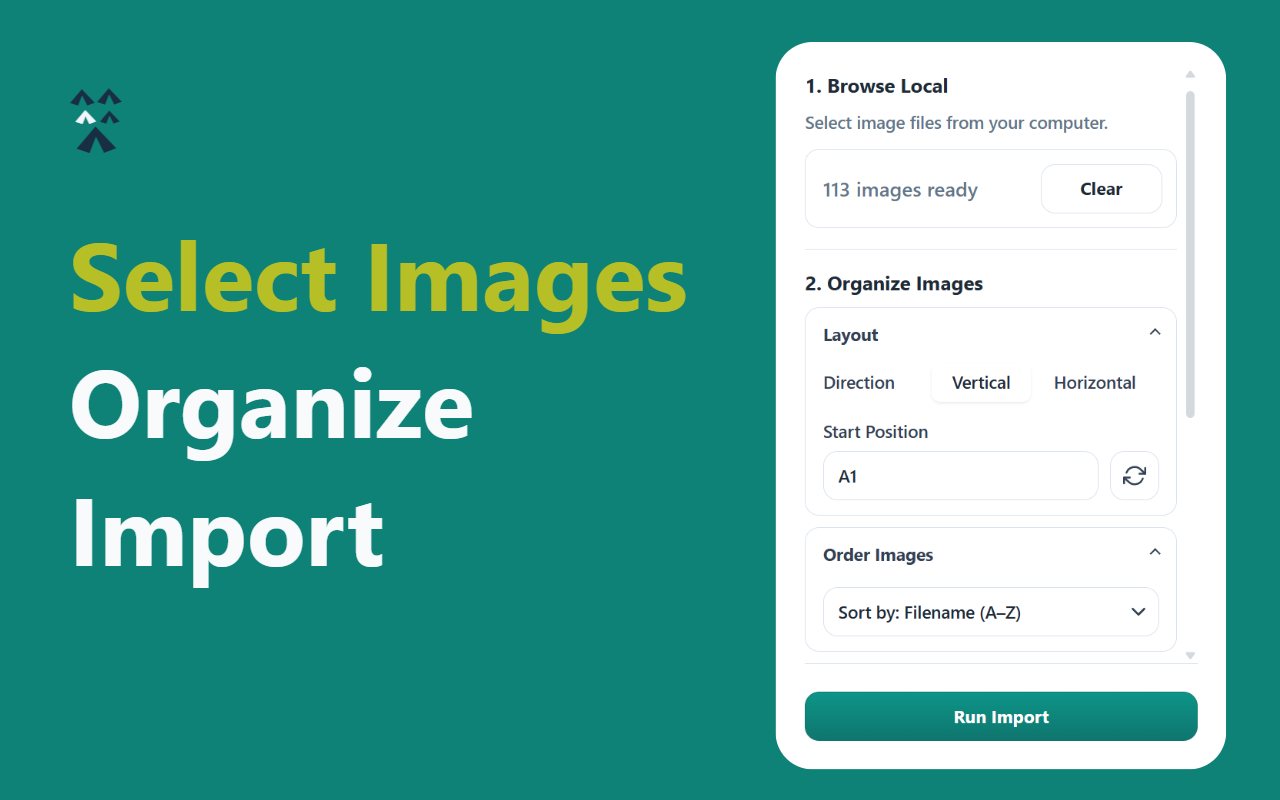
How to Insert an Image in a Cell With a Shortcut in Google Sheets™ (Why It Fails and How to Fix It)
Published on September 8, 2026
Looking for a keyboard shortcut to insert images into Google Sheets™ cells faster? Let's take a look at the Alt + Shift + I > G > I shortcut, how to actually use it, and why it's not delivering if you have hundreds of images to upload.
How to Use the "Insert Image in Cell" Shortcut
Google Sheets uses sequential menu shortcuts. Rather than holding all keys at once, press them in order:
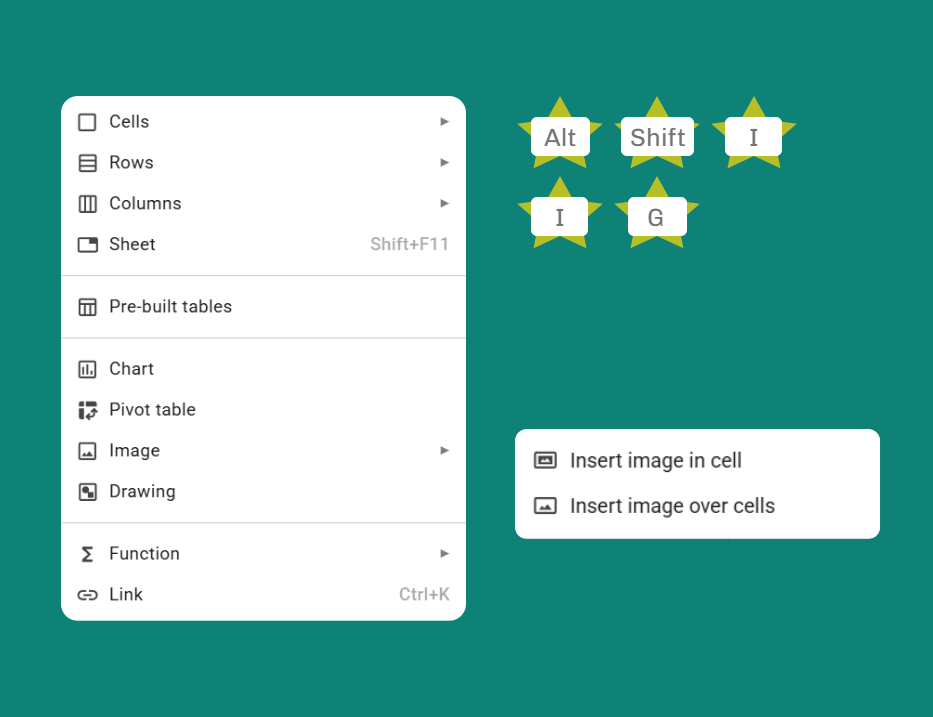
Why the Shortcut Fails (And How to Fix It)
If the shortcut is not working, try one of these:
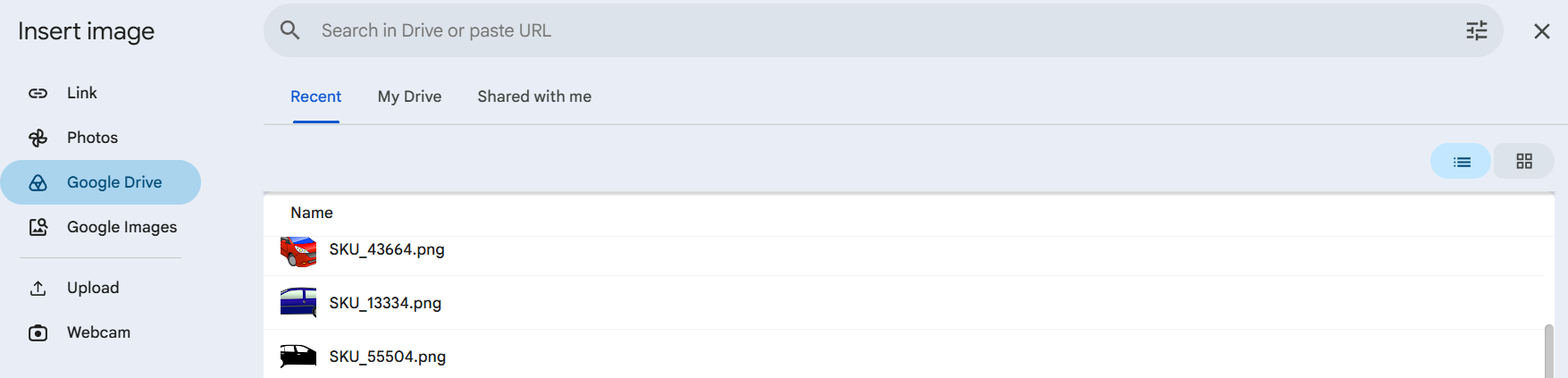
However, even if you succeed and open the "Insert image" dialog, there are still 3-5 manual clicks to upload an image. What a waste!
A Faster Alternative: Bulk Image Import
If you are dealing with more than a couple of photos, repeating these shortcut steps is a massive bottleneck.
To insert multiple images into Google Sheets™ cells at once, you can use the Bulk Image Import add-on. Instead of uploading images one by one, it lets you select a local folder or Google Drive™ and batch-import hundreds of images directly into individual cells in a single click.