
Insert Multiple Images into Google Sheets™
Bulk Image Import lets you upload multiple images at once and place them across many spreadsheet cells instead of inserting them one by one.

Features
Add Multiple Images
Insert 100s of images into your Google Sheet in one step.
Rows or Columns
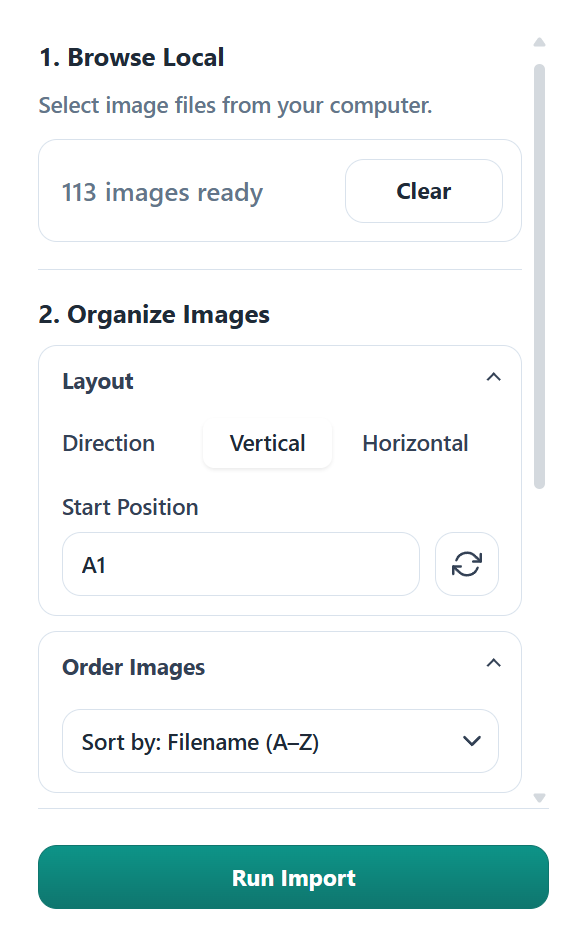
Insert images vertically or horizontally from any selected cell.
Drive + Local Folder
Upload images in bulk directly from Google Drive™ or a local folder.
Keep Your Images
Store images inside the sheet. No more broken image links when sharing.
Build Visual Catalogs
Create product catalogs, asset inventories, team rosters, and icon collections.
100% Private
Zero external servers, data never leaves your account.
Sort by Name
Organize images alphabetically by name or by modification date before importing.
How to Insert Multiple Images into Google Sheets™
-
Open Bulk Image Import
Open a Google Sheet and select Extensions, then Bulk Image Import.
-
Browse Images
Click Browse to select images from Google Drive™ or a local folder.
-
Select Your Images
Choose the PNG, JPEG, JPG, or GIF images you want to add to your spreadsheet.
-
Set Image Layout
Choose a starting cell and how your images should be arranged.
-
Insert the Images
Click Import and watch your Google Sheet populate with images and file details.
Frequently Asked Questions
Can I insert multiple images into Google Sheets™ cells at once?
Yes, you can upload multiple images to cells in Google Sheets™ in one step.
Are images inserted in-cell or placed over cells?
Images are inserted in-cell, so they stay aligned with their rows when you sort, filter, or share your sheet.
What image formats are supported?
Bulk Image Import lets you upload images in any format supported by Google Sheets™, including PNG, JPEG/JPG, and GIF.
Where can I get Bulk Image Import?
You will find the add-on in the Workspace Marketplace by clicking this link .